You can create custom Activity Zones for your camera or doorbell for different types of activities that you want to be notified about. Just use the app to draw a zone around a specific area in your camera's view. For instance, create a zone around a door if you want a notification when a person walks through it. The person who walks through the door Activity Zone also creates an event in your video history timeline.
Activity Zones is a feature that comes with cameras and doorbells set up in the Home app. For all other cameras, Activity Zones is available if you have a trial or paid Google Home Premium subscription.
With Activity Zones, you can:
- Monitor up to four zones per camera.
- Give each zone a custom shape, size, colour and name.
- Get people alerts and other motion alerts when activity happens in a zone. If you have a Nest doorbell, you can also get parcel alerts.
- Get notifications which include the name of the zone, so that you know exactly where something happened.
- Set up a zone where there's activity that you don't want to be bothered about, such as a window that overlooks a busy view, but get alerts for activity throughout the rest of the room.
- Find markers on your video history timeline for activity that happened in each zone, so that it's easy to review everything.
Activity Zones don't change what your camera detects
Even after you create Activity Zones, your camera still streams its entire view and stores the footage in your video history. The video feed will stay the same with or without Activity Zones.
However, when you have Activity Zones, you can receive alerts about motion in certain parts of your camera's view and also check activity that has occurred there in the past.
Create and use Activity Zones on a phone
Home app
If the option to create Activity Zones doesn't appear in the Home app, follow the Nest app instructions in the section below.
- Open the Google Home app
 .
. - Tap Home

 Cameras
 your camera.
 - Tap Settings

 Events
 Seen events
  .
. - Choose + Add a zone. The new zone appears in the middle of the camera's view.
- Change the shape of the zone to capture what you want.
- Turn your phone to go into landscape mode for a full screen of your camera's view. Make sure that the screen rotation setting on your phone is on.
- Tap and drag inside the zone to move it.
- Tap and drag any of the eight dots on the sides of the zone to change its shape.
- To change the colour of the Activity Zone, tap Zone colour. You can pick from four different colours.
- Under the camera view, tap on the Zone name to give your zone a descriptive name.
- Under Event history, you can choose which types of events you want to record in that zone and which notifications you want to receive.
Nest app
- Select the camera for which you want to make an Activity Zone.
- Tap Settings
 .
. - Select Activity Zones. You'll need to have an active Google Home Premium subscription. Otherwise, the Activity Zone option won't appear.
- Tap Create zone
 . The new zone will appear in the middle of the screen.
 - Turn your phone to go into landscape mode for a full screen of your camera's view. Make sure that the screen rotation setting on your phone is on.
- Tap and drag inside the zone to move it.
- Tap and drag any of the eight points on the sides of the zone to change its shape.
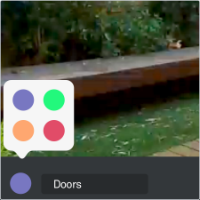
- On the bottom of the screen, tap one of the coloured circles to change the colour of the Activity Zone. You can pick from four different colours.
- At the top of the screen, tap the pencil
 to give your zone a descriptive name. Then, tap the tick
  to save the zone name.
 - Tap the tick
 to save the zone.
After you create a zone
Any events that happen within an Activity Zone are colour-coded to match the zone, even if they happened before you created the zone.
 .
.
 Cameras
 your camera.
 Events
 Seen events
  .
. .
. to save. If you change your mind, at the top-left corner, tap Cancel
  .
. .
.
 Cameras
 your camera.
 Events
 Seen events
  .
. .
. . Confirm that you want to delete the zone.
Create and use Activity Zones on a computer
You can only create and edit Activity Zones on a computer if you set up your camera or doorbell with the Nest app.
With just a few clicks of your mouse, you can make an Activity Zone for any area that you want to keep an eye on. You can also edit or delete existing Activity Zones.
 .
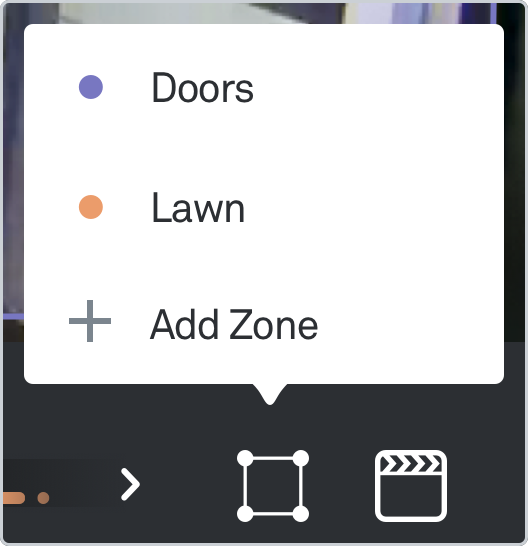
. . to show only the events that you want.
 .
. .
.
Tips to set up Activity Zones
Create small zones
A big Activity Zone captures more activity. In general, the smaller and more precise the Activity Zone, the more accurate your camera's alerts should be.
If your zone is too large, objects that don't appear to be in the zone can trigger an in-zone recording or notification.
Experiment with the size and placement of your Activity Zones to get the effect that you want.
Don't overlap zones
If you overlap two or more Activity Zones, you only receive a notification for the Activity Zone where the activity first occurred. If the activity actually happened in two or more Activity Zones at the same time, you only get a notification for one of the Activity Zones.